Access to Course Content Early

Home > Access to Course Content Early

You might have a student that needs access to course content early based on a DRC accommodation or because they have an upcoming conflict and need to work ahead. You can choose to show the course content for all students by modifying the week/topic/section visibility. If you would like only the selected student to have early access you will need to set up Restrict access on the week/topic/section to allow only that student to access the content, and give the other students access after a specified date.

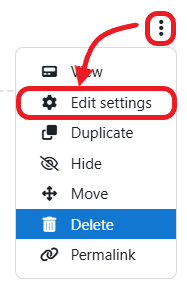
Click the Edit menu (three vertical dots) to the right of the week/topic you want to allow early access to.

Select the Edit week/topic option.

Expand the Restrict access section.

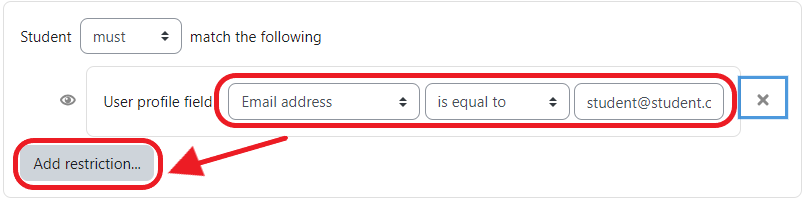
Click the Add restriction… button.

Click the User profile button.

Select Email address from the first User profile field drop-down.

Select is equal to from the second User profile field drop-down.

Enter the email address of the student you want to give early access in the textbox.

NOTE: Repeat these steps if you have more than one student that you need to give early access to.

Click the Add restriction… button.

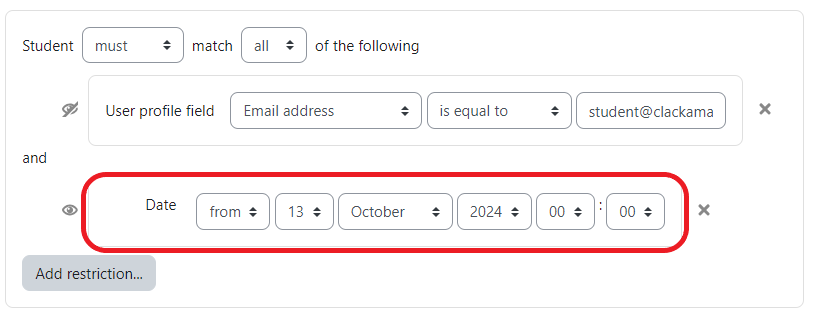
Click the Date button.

Set the date to the date you want ALL students to have access to the content.

Select the any option from the Student must match drop-down.

Click on the eye icon to hide the week/topic when the conditions are not met.

Click the Save changes button.

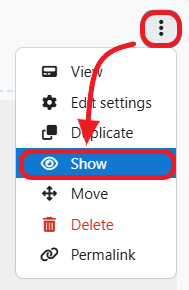
Click the Edit menu (three vertical dots) to the right of the week/topic when you are ready for the student to have access.

Select the Show week/topic option.