To be able to import course content into your course you will need to have Teacher, Staging Manager, or Course Content Viewer role within the course you wish to copy from. If you do not already have one of those roles in the course, you can request the instructor to manually enroll you in the course with the Course Content Viewer role.
Follow these steps to copy all course content from another course into this course.
Log into Moodle.
Enter the course you wish to copy into.
NOTE: If you make a mistake and wish to start fresh, submit a ticket to OLET and we can reset your course for you.
Scroll to the top of the main page of your course.
Click the More option from the secondary navigation.
Select Course reuse.

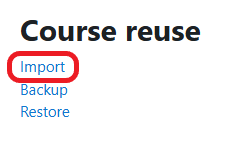
Click the Import option.
NOTE: DO NOT use Restore for provisioned courses.
Select the radio button to the left of the course you want to pull content from.
NOTE: If you do not see the desired course, you can limit your results to a term by entering the four-digit year slash two-letter term code (e.g. 2023/FA) or the Course Number (e.g. MTH-095) and clicking the Search button.
Click the Continue button.

Click the Jump to final step button to copy the entire course.
NOTE: Double-clicking on this button may result in duplicated content and will require you to submit a ticket to OLET to clear your course content so you can try again.

Once the import is complete, click the Continue button.
NOTE: Depending on how much content you have hosted in Moodle, it may take a substantial amount of time to complete the import.
This will return you to the course page.

Follow these directions to copy specific course content from another course into this course.
NOTE: Deselecting options may exclude important elements, including manual grade items and gradebook settings. Use this option when you only need to copy specific activities or resources, not the full course setup.
Log into Moodle.
Enter the course you wish to copy into.
NOTE: If you make a mistake and wish to start fresh, submit a ticket to OLET and we can reset your course for you.
Scroll to the top of the main page of your course.
Click the More option from the secondary navigation.
Select Course reuse.
Click the Import option.
Select the radio button to the left of the course you want to pull content from.
NOTE: If you do not see the desired course, you can limit your results to a term by entering the four-digit year slash two-letter term code (e.g. 2023/FA) or the Course Number (e.g. MTH-095) and clicking the Search button.
Click the Continue button.
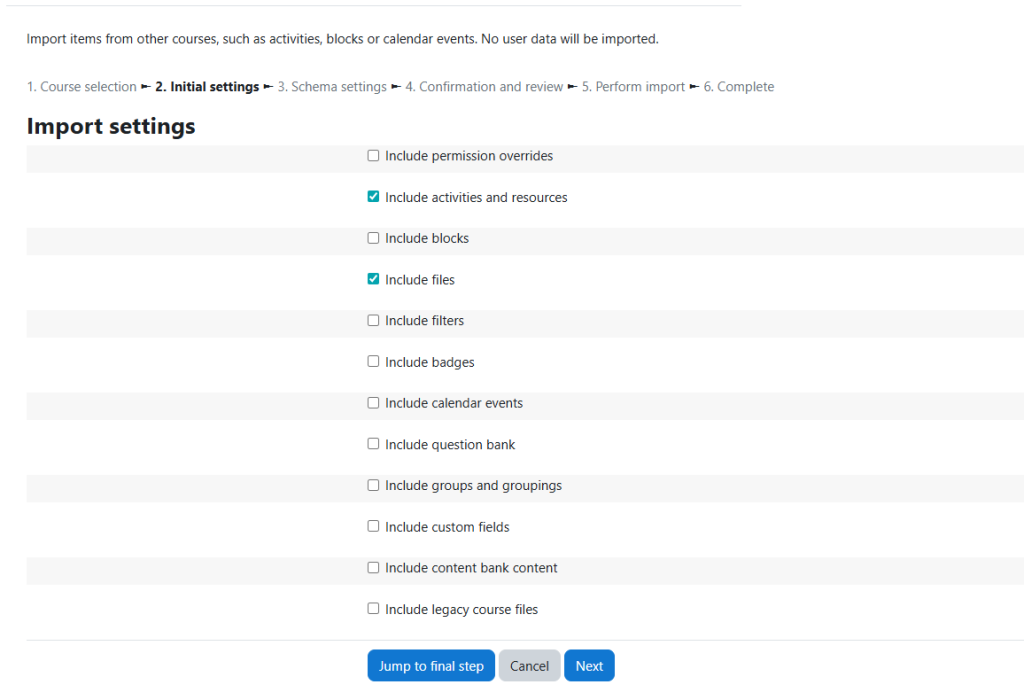
Deselect all Import settings other than Include activities and resources and Include files.
NOTE: To prevent duplicate content, only select the Include question bank option if you plan to copy quiz activities and only select the Include content bank content if you plan to copy H5P activities.
Click the Next button at the bottom.
Click None option to deselect all items.
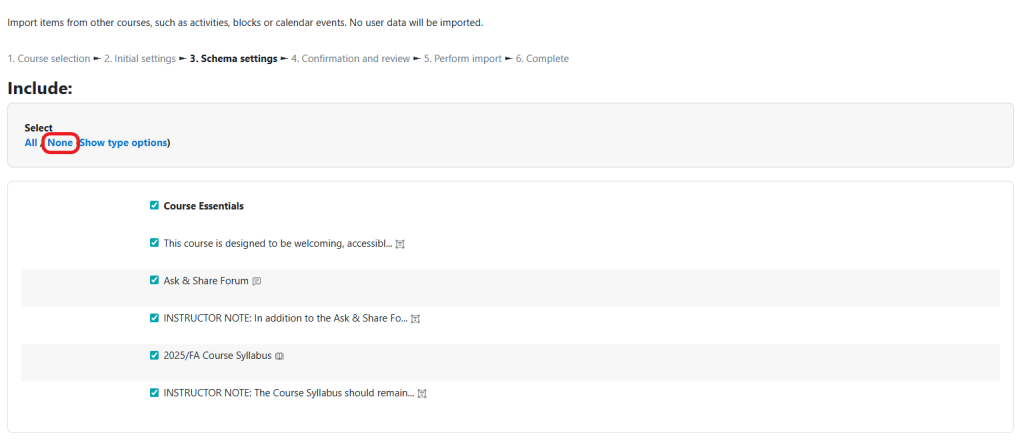
Check the topic/week and then all the activities or resources within that topic/week that you want to copy.
Repeat for all activities and resources you intend to copy.
NOTE: Graded activities and their gradebook settings are copied together. If you do not copy ALL graded activities, gradebook setup will be excluded.

Click the Next button at the bottom of the page.

Scroll to the bottom of the page, click on the Perform import button.

Once the import is complete, click the Continue button.
NOTE: Depending on how much content you have hosted in Moodle, it may take a substantial amount of time to complete the import.
This will return you to the course page.
Post-Import Reminders:
Import will not copy all settings, so you must check and update the following (as needed):
Course settings:
- Course Layout: re-select the Show all sections on one page course layout.
- Course image: upload the image again or find a new one.
Enrollments and groups:
- Meta-Course Enrollment
- Groups: enable groups in the course settings and add participants to the groups; groups and groupings will remain in place.
Gradebook Settings:
- Verify how Grade letters are calculated.
- Verify Course grade settings like Grade Display Type and information available in the User Report.
User Data:
- Re-post your initial Q and A forum prompt(s) and discussion(s).
- Export and import your entries from within the Glossary Activity.