You can use Bulk actions to change the availability, duplicate, move or delete multiple sections, activities, or resources in your course at once. This is a built in tool, and will be available in all your courses.
Availability controls how activities and resources are displayed to students. You can use Bulk actions to change the availability settings for multiple activities, resources, and sections in your course.
From the top-right corner of the page, toggle Edit mode into the On position.

Click the Bulk actions link in the upper right corner of your course page.
NOTE: If you don’t see it, make sure you scroll to the top of your course page.

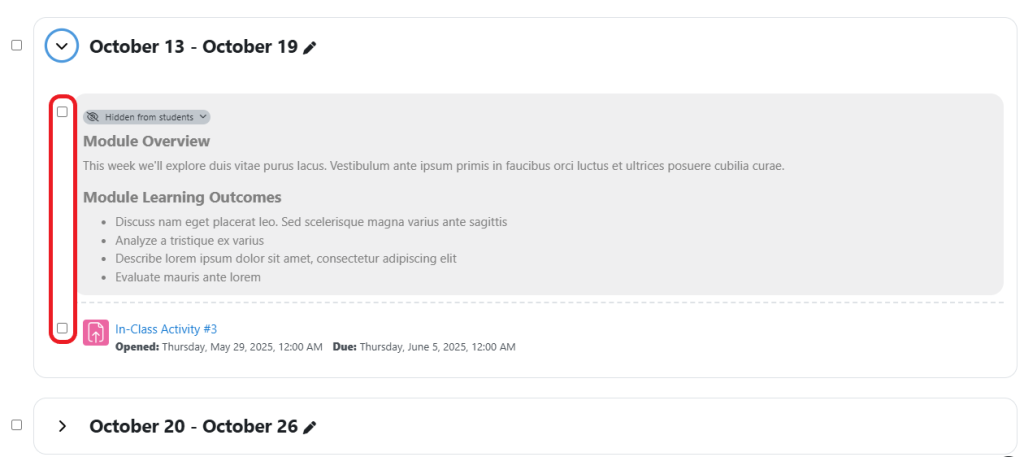
To select or deselect multiple activities or resources, check or uncheck the box to the left of each item in your course.
NOTE: You can select multiple sections/weeks but you cannot do this when you have already selected activities or resources.
Select Availability from the footer.
Select the appropriate availability option from the list:
- Show on course page – Available to students, but subject to access restrictions that may be set.
- Hide on course page – Not available to students.
- Make available but don’t show on course page – Available to students if you provide a link or if you use auto-linking in your course.
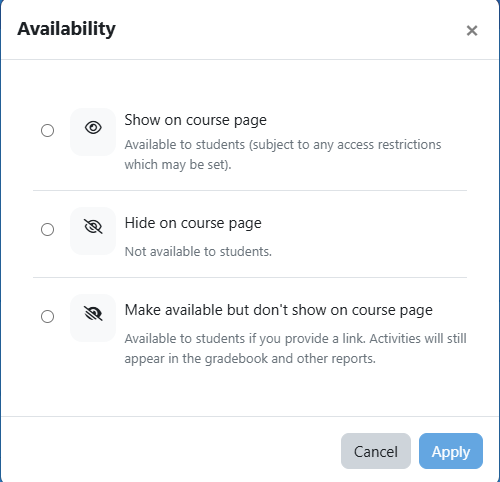
Click the Apply button.

If you are done using bulk actions, click the x from the right side of the footer to close.

Duplicate will create a copy of each selected section, resource or activity directly below the original.
NOTE: To duplicate resources, activities or sections to a different course you will need to use course import.
From the top-right corner of the page, toggle Edit mode into the On position.
Click the Bulk actions link in the upper right corner of your course page.
NOTE: If you don’t see it, make sure you scroll to the top of your course page.
To select or deselect multiple activities or resources, check or uncheck the box to the left of each item in your course.
NOTE: You cannot duplicate sections/weeks using bulk actions. To duplicate a section you need to use the edit menu (three vertical dots) to the right of the section.
Select Duplicate from the footer.

It will create a duplicate of each selected activity/resource directly under the original activity/resource.
Make sure you move and rename the duplicate activities and resources as appropriate.
If you are done using bulk actions, click the x from the right side of the footer to close.
From the top-right corner of the page, toggle Edit mode into the On position.
Click the Bulk actions link in the upper right corner of your course page.
NOTE: If you don’t see it, make sure you scroll to the top of your course page.
To select or deselect multiple activities or resources, check or uncheck the box to the left of each item in your course.
NOTE: You can select multiple sections/weeks but you cannot do this when you have already selected activities or resources.
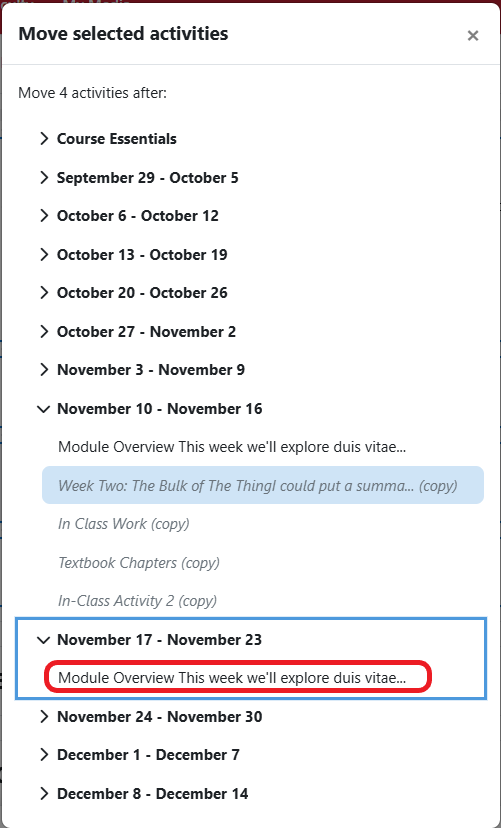
Select Move from the footer.
Click the item which you would like to the selected items to appear after.
NOTE: You can also select a section/week if you want them to appear at the top of that section/week.
If you are done using bulk actions, click the x from the right side of the footer to close.
From the top-right corner of the page, toggle Edit mode into the On position.
Click the Bulk actions link in the upper right corner of your course page.
NOTE: If you don’t see it, make sure you scroll to the top of your course page.
To select or deselect multiple activities or resources, check or uncheck the box to the left of each item in your course.
NOTE: You can select multiple sections/weeks but you cannot do this when you have already selected activities or resources.
Select Delete from the footer.

Confirm, by clicking the Delete button.
NOTE: All deleted activities/resources will be available in the recycle bin for 7 days.

If you are done using bulk actions, click the x from the right side of the footer to close.