Managing Kaltura Multimedia in My Media

Home > Sharing Kaltura Videos > Managing Kaltura Multimedia in My Media

Kaltura is our long-term storage for multimedia at the college. All videos recorded to the Zoom Cloud will automatically upload to Kaltura once they are processed. You can also manually upload videos recorded with other tools.

NOTE: We recommend that you rename and/or edit any videos in Kaltura since ALL Zoom Cloud recordings will be removed after 90 days.

Renaming a Video

When a video is uploaded to Kaltura, the video will use the original filename or the Zoom Meeting topic. These names are typically not very descriptive; we highly recommend that you rename your videos so you can easily identify their content at a later date.

Log into MediaSpace (video.clackamas.edu) or Moodle (online.clackamas.edu) and go to My Media.

NOTE: My Media is located under the user menu in MediaSpace, and on the red bar in Moodle.

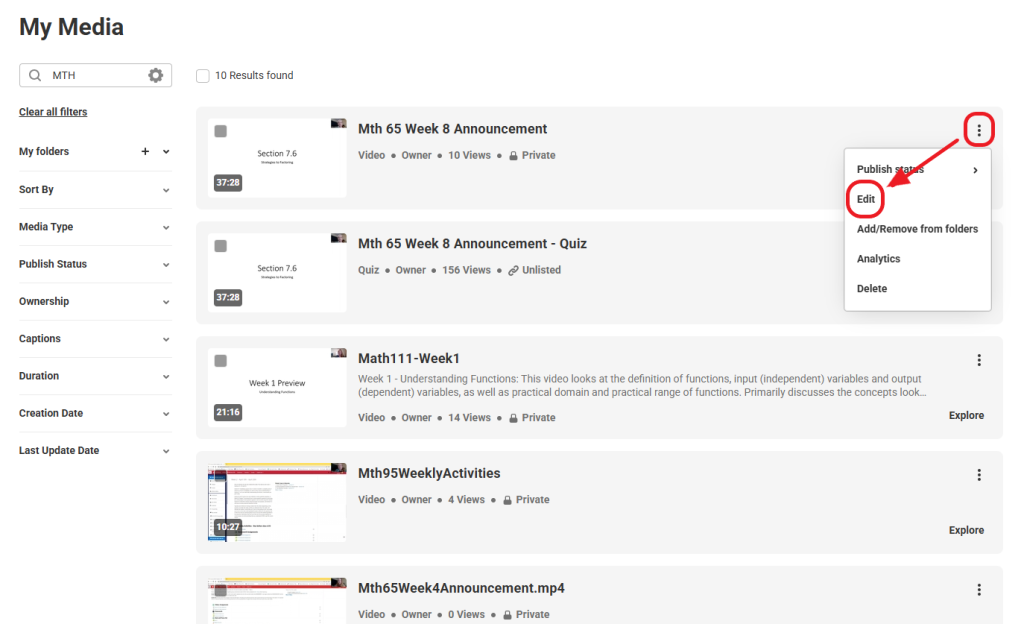
Click on the Action menu (three vertical dots) next to the video you wish to rename.

Select the Edit option from the drop-down menu.

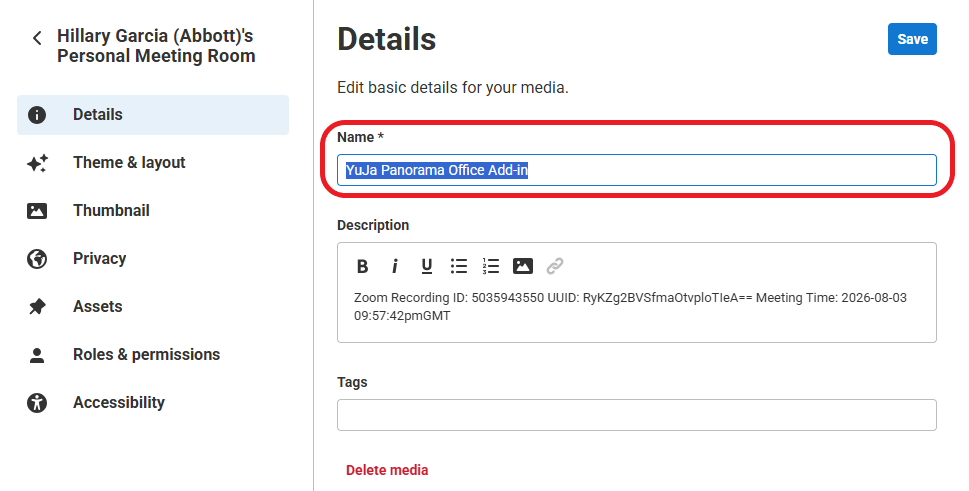
Select the Details tab.

Enter the video Name in the text box.

NOTE: You may also wish to include a Description and Tags to make your video easier to identify and search.

Click the Save button.

Organize Videos within Folders

As your Kaltura Video library grows you may want to organize your videos so you can find related videos easier. You can now use Folders within Kaltura to organize your videos and other Kaltura media.

Log into MediaSpace (video.clackamas.edu) or Moodle (online.clackamas.edu) and go to My Media.

NOTE: My Media is located under the user menu in MediaSpace, and on the red bar in Moodle.

Click the + sign next to My folders.

NOTE: If you have already created folders inside of Kaltura you can skip to step 5.

Enter a descriptive Name.

Click the Create button.

Check all the checkboxes to the left for the videos you wish to add to a folder.

From the More actions drop down menu select the Add to folders option.

Check the folder(s) you want to add the selected videos to.

Click the Update button.

To view your organized videos, click My folders to see all your folders.

Click the name of the folder that you want to view.

Delete a Video

Although there is no limit to how many videos you can have in Kaltura, you may want to delete videos that you are no longer using or that have errors.

NOTE: When you delete a video from Kaltura, the video will move to the Recycle Bin. If you do not restore the video within 30 days, it will be deleted permanently.

Log into MediaSpace (video.clackamas.edu) or Moodle (online.clackamas.edu) and go to My Media.

NOTE: My Media is located under the user menu in MediaSpace, and on the red bar in Moodle.

Check all the checkboxes to the left for the videos you wish to delete.

Click Delete at the top.

Click the red Delete button in the pop-up.

NOTE:  If you delete anything in error, these videos can be found in the Recycle bin for 30-days.

You can also delete a single video by clicking on Actions menu (three vertical dots) and select the Delete option from the drop-down menu.

Restoring a video from Recycle Bin

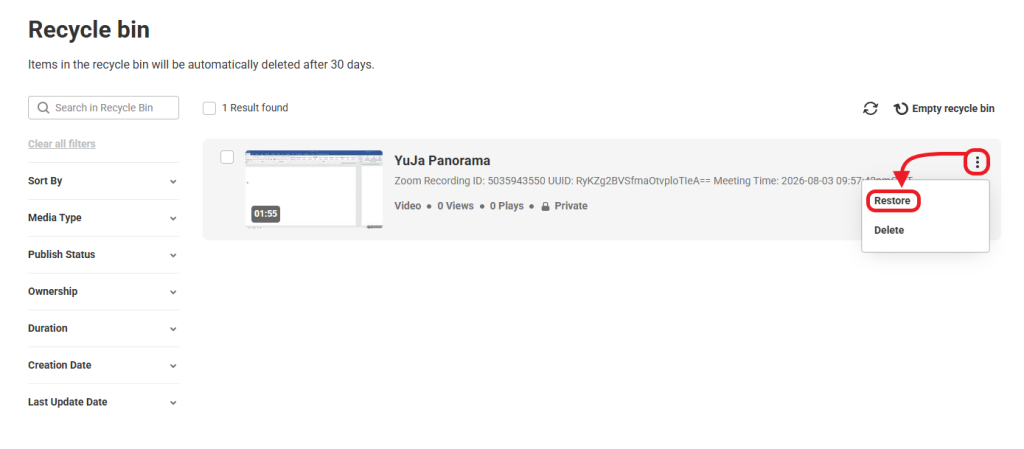
If you have accidentally deleted a video from your My Media (either in MediaSpace or Moodle), the deleted video will remain in the Recycle Bin for 30 days. You may restore that video back to your My Media within that timeframe.

Log into MediaSpace (video.clackamas.edu) or Moodle (online.clackamas.edu) and go to My Media.

NOTE: My Media is located under the user menu in MediaSpace, and on the red bar in Moodle.

Click the My Recycle Bin button.

NOTE: In MediaSpace you can access My Recycle Bin from the user menu in the upper right hand corner.

Click the Restore icon next to the video you wish to restore.

NOTE: To restore multiple videos, check all the videos. Select the Restore option from the Actions menu.

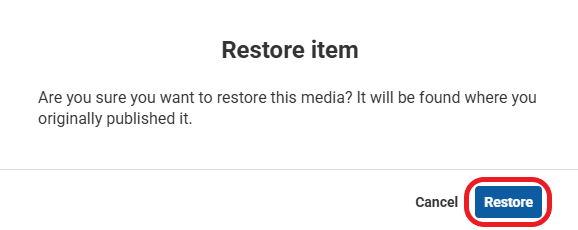
Click the Restore button.

NOTE: The video will reappear in both MediaSpace and Moodle.

Downloading a Video

If you have a student who needs access to a video offline, you may wish to download the video; students cannot download videos themselves.

Log into MediaSpace (video.clackamas.edu) or Moodle (online.clackamas.edu) and go to My Media.

NOTE: My Media is located under the user menu in MediaSpace, and on the red bar in Moodle.

Click on the three vertical dots icon next to the video you wish to download.

Select the Edit option from the drop-down menu.

Click the Download button on the video player.

NOTE: You may need to click in the video for the player buttons to display.

Click the download icon for the Main stream video.

NOTE: Depending on the video you may have other options available to download.

Click the Save button.

NOTE: If you’re unsure where the download file is saved, check the Downloads folder on your local computer.