These steps will help you design your gradebook using the Percentage Layout. This is just one part of the gradebook setup that you will need to complete.
Scroll to the top of the main page of your course.
Select the Grades option from the secondary navigation.
Select the Gradebook Setup option from the drop-down menu.

Click the Actions (…) drop-down menu to the right of the course title.
Select the Edit category option.
NOTE: If the Natural aggregation is already listed in the status column to the right of the course title you can skip to step #.

For Aggregation, select Natural from the drop-down menu.
Click the Save button.

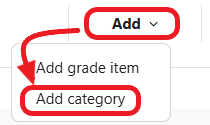
Select the Add category option from the Add drop-down menu if you would like to organize your grade items.
NOTE: If the category already exists, click the ellipse (…) to the right of the category and select the Edit category option instead.
For Category Name, enter the name of the category listed in your syllabus.
For Aggregation, select Simple Weighted Mean of Grades from the drop-down menu.
NOTE: If you want to have course grades accurately represented throughout the term, ensure that Exclude empty grades is checked. Otherwise, students will only receive an accurate score at the very end of the term. If checked, you will need to manually enter zero (0) values for every missed assignment along the way or grades will appear falsely high.
Set the Maximum grade to the percent listed in your syllabus for the category (i.e. 10% becomes 10 points, 20% becomes 20 points, etc.).

Click the Save button.

Repeat steps 4-6 until you have created all the categories listed in your syllabus.
You will now need to move any existing grade items or add manual grade items to the appropriate gradebook category.
To get the correct total, all grade items need to be placed in a category.
If you did your math correctly, the percentages should add up to 100%.
This means that the course total will display as 100 points and will represent the percent the student has earned in the course.
