Gradebook: Settings

Course Grade Settings

The Course Grade Settings will determine how the Grader report which determines how instructors see grades for the course, Overview report which shows student grades for all courses, and User report which reflects what students will see when they view their grades.

There are four sections: General Settings, Grade item settings, Overview report, and User report.

How to Find it

Scroll to the top of the main page of your course.

Select the Grades option from the secondary navigation

Select the Course grade settings option from the drop-down menu.  

General Settings

The Aggregation position determines whether the course and category totals are displayed first or last in the User report. 

Grade Item Settings

The Grade display type determines what type of grade(s) display for each grade item in both the Grader and User report.

  • Real – Actual grade or scale value
  • Percentage – Relative to maximum and minimum grades
  • Letter – Letters or words are used to represent a range of grades as defined in Grade letters.

The Overall decimal places determines the number of decimal places to display for each grade item. This has no impact on the grade calculation.

If you change the Show rank or Hide totals if they contain hidden items settings for the Overview report you should make the same changes to the User report section. This will ensure that the grades students view are consistent.

The User report section determines what details will be shared with students when they view their grades in the User report. An instructor can decide whether to Hide or Show details such as class rank, item percentages, item feedback, etc.

NOTE: Remember to click on Save changes once you have finished changing your settings.

Preferences: Grader Report

Instructors can set their personal preferences for the Grader report which allows them to see all grades in the course including hidden grade items. These settings will affect all courses the instructor teaches not just this course.

There are three sections available for choosing settings under each of these: Show/hide toggles, Special rows, and General. You can click the question mark next to the settings for more information.

How to Find it

Scroll to the top of the main page of your course.

Select the Grades option from the secondary navigation

Select the Preferences: Grader report option from the drop-down menu 

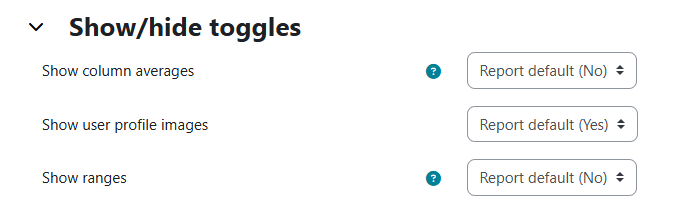
Show/hide toggles

This will determine what items will show in the grader report. You can choose whether to show user profile images or display an extra row showing the average and/or range for each category and grade item.

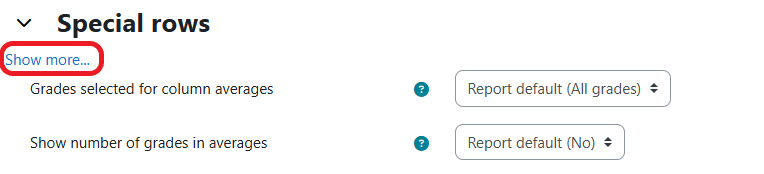
Special rows

If you decide to display the average or range for each column in the Show/hide toggles section above. This section will let you determine how these are calculated and displayed.

NOTE: Click Show more… to view all the available settings.

General

Allows you to turn on/off Quick grading  in the grader report, to show only active enrollments, and the Aggregation position of your course and category totals.

NOTE: We do not recommend using Quick grading in the Grader report. We recommend using the built-in grading tools for Moodle activities, and Single view to bulk enter grades and to grade manual grade items.

View Related Articles
This will ensure that any grade items and categories will total in points rather than “Out of 100” , which is probably not what your points add up to. ...
Continue Reading
Moodle’s Gradebook aligns with the best practice in online pedagogy to provide learners with a well designed and up-to-date gradebook. However, if your gradebook ne...
Continue Reading
Display Letter Grades You can choose to display a letter grade for the course and/or category total in the gradebook for both your students and yourself. ...
Continue Reading