Gradebook Troubleshooting: Student grades appear much lower or higher than they should

Home > Gradebook > Gradebook: How Grades are Displayed > Gradebook Troubleshooting: Student grades appear much lower or higher than they should

You may find that student grades appear lower than expected if grade items that are hidden or have not been completed are being used to calculate the course grade. If you are finding this to be the case you can follow these steps to fix this issue.

NOTE: Changing this setting will also cause grade to appear higher than expected unless you enter a grade of zero for missing assignments. You can bulk enter zeros for empty grades after the due date to prevent this.

Scroll to the top of the main page of your course.

Select the Grades option from the secondary navigation

Select the Gradebook Setup option from the drop-down menu.

Locate the name of the course at the top of the table.

Ensure the Status column states Exclude empty grades.

If Exclude empty grades is stated, skip to step 5.

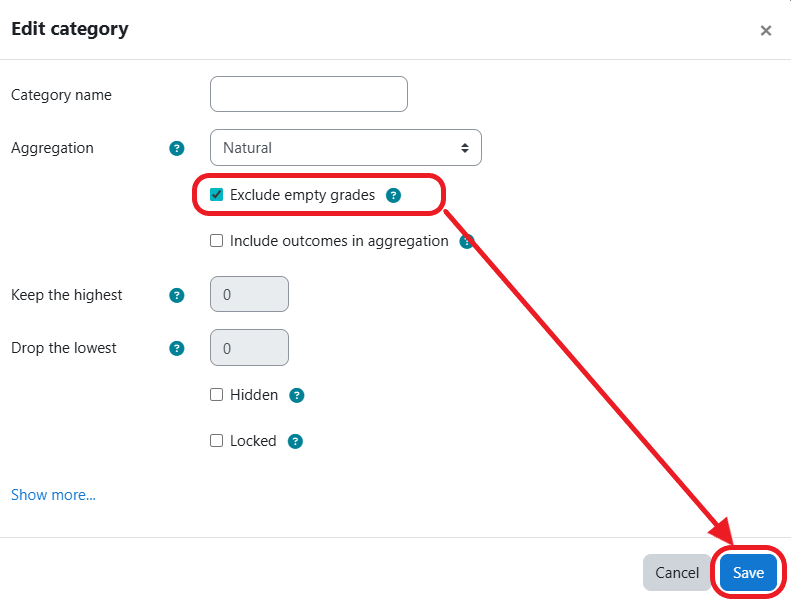
If Empty grades is not stated in the Status column, select the Edit category option from the Action drop-down menu (ellipse) to the right.

Check the Exclude empty grades option.

Click the Save button.

Locate EACH category title, ensure the Status column states Exclude empty grades.

If it does not state Exclude empty grades, repeat steps 3-4 to edit the category.