The Page resource can be used display information to students without having to leave Moodle—unlike a standard PDF or Word document—is designed to be accessible for all users, regardless of disabilities, devices, or screen sizes. Multimedia and interactive content can also be embedded in the Page.
Pages are ideal for the providing the following following:
- List of resources.
- Small amount of reading material (for more expansive reading material, consider using the Book resource instead.)
- Instructions for an activity that will not be submitted online. (If you want the student to submit online use an Assignment activity or another Moodle activity)
- Embedded Video(s)
Enter your course and turn Edit mode on.

Scroll to where you want to add the Page resource.
Click the plus symbol to access the Add content drop-down menu.
NOTE: If you want to add between two existing activities or resources you will need to hover over the dashed line to have the Add content link appear.
Select Activity or resource option from the drop down.

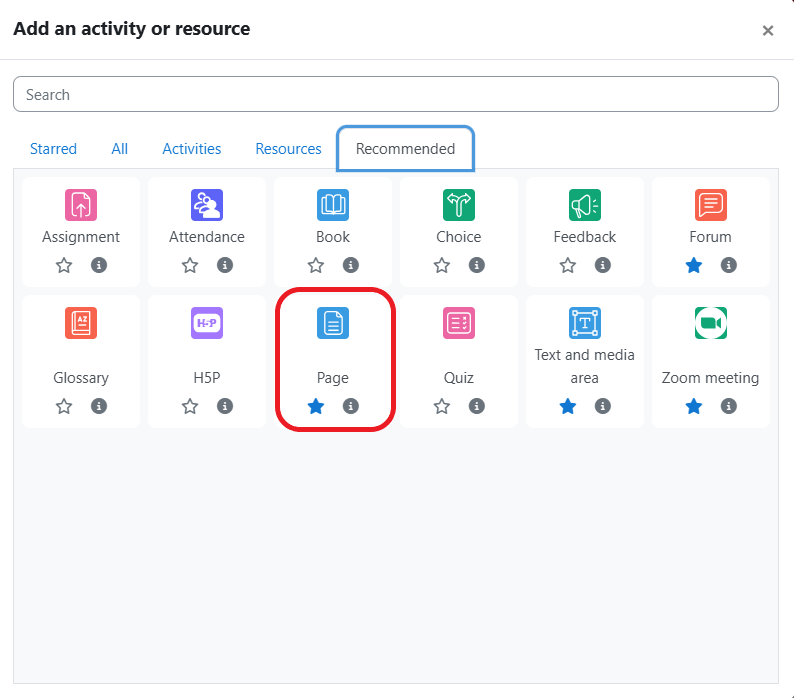
Select Page from the Activity Chooser.
Complete the General Section:
- Enter a unique Name. This is how the page will be identified on the course main page and in the course index.
- Enter a Description: Give a general explanation of the page. May choose to display on course page by using the checkbox below.
NOTE: To have the Description visible when you open the page, you need to check Display page description under the Appearance section.

Complete the Page content section:
You can add formatted text, media, url links, and H5P content via the text editor.
NOTE: If you have a large amount of content that will require scrolling, we recommend you use the Book Resource instead.

Click the Save and display button to view your completed page.
