Adding the MoodleMail Block

Home > Adding the MoodleMail Block

Student communication is important. Sometimes you may want to email the entire course or select students at the same time. You can use Microsoft Outlook to do this, but you may find it easier to use the MoodleMail Block.

The MoodleMail Block will allow you to compose these emails quickly and easily in the Moodle system, but it will appear that the email is coming directly from your @clackamas.edu email account and students can reply to the email that they receive.

Refer to the Communications Comparison Chart to determine which option will work best for your needs.

Enter your course and turn Edit mode on.

Turn Editing On button is found in the top-right corner of a Moodle page you have permission to modify content for.

Click the tab on the right side of the course page to open the Block drawer.

Click Add a Block at the top of the expanded Block drawer

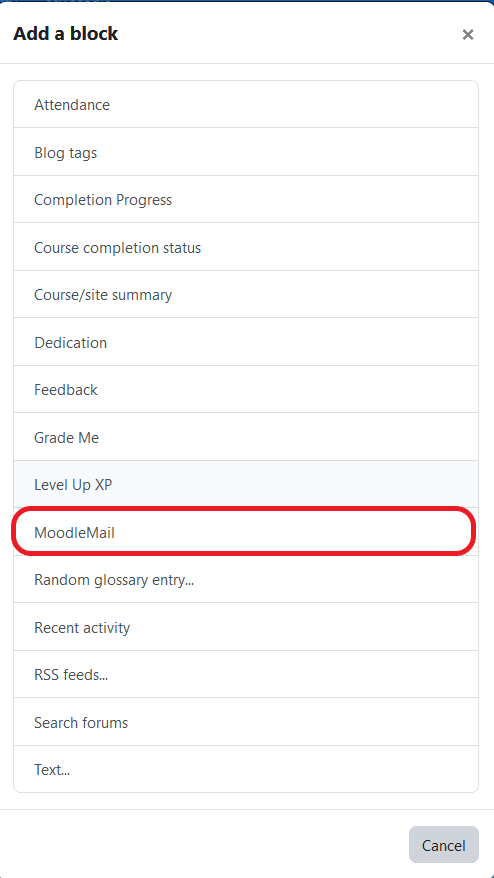
From the Add a block menu select MoodleMail.

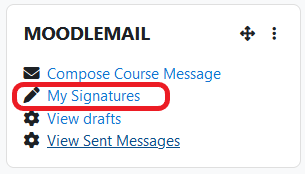
Before you send your first course message we recommend you set up My Signatures.

Now you are ready to Compose your first Course Message.

View Related Articles
Communication with students is very important aspect of online learning. MoodleMail can be used to compose a course message to your entire course, select groups, or s...
Continue Reading
Set up a signature in MoodleMail so you don’t have to type in your full signature to each message. If you haven’t already you need to Add the MoodleMail Block to ...
Continue Reading
How-To Configure your Quickmail block There are a few default settings in your Quickmail configuration that you may wish to change to make the Quickmail block be more...
Continue Reading