Set up a signature in MoodleMail so you don’t have to type in your full signature to each message.
If you haven’t already you need to Add the MoodleMail Block to your course.
Set up a signature in MoodleMail so you don’t have to type in your full signature to each message.
If you haven’t already you need to Add the MoodleMail Block to your course.
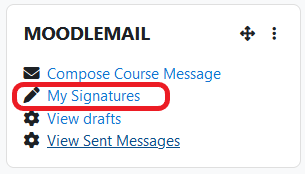
Click on the My Signature link on the MoodleMail Block.
Verify New signature option is selected in the drop-down.
NOTE: You can set up multiple signatures with different titles, but then you will need to make sure you select the correct one each time you compose a message.
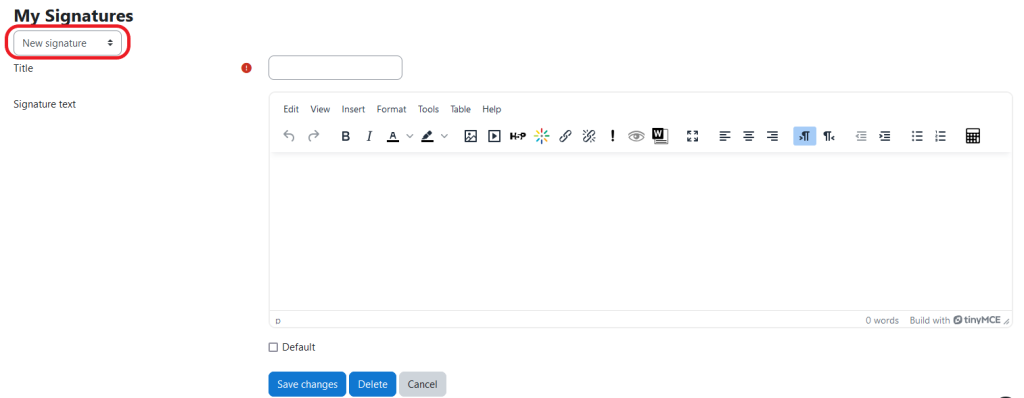
Enter a Title.
NOTE: Make sure your title is descriptive if you plan on creating more than one signature.

In the Signature text area use the text editor to enter and format your email signature.
Enter a Title that describes the type of signature.
Using the text editor create your signature in the Signature text area.
Click the Save changes button.

Click the Compose Course Message link to create your first message.
NOTE: If you don’t want to create a message you can click Course from the secondary navigation to return to the course main page.
