Compose a MoodleMail Message

Home > Adding the MoodleMail Block > Compose a MoodleMail Message

Communication with students is very important aspect of online learning. MoodleMail can be used to compose a course message to your entire course, select groups, or specific users. These messages can be sent immediately or you can save as a draft to send at a later date and time.

If you haven’t already you need to Add the MoodleMail Block to your course.

Locate the MoodleMail block on the expanded Block drawer on the right side of the page.

Click on Compose Course Message

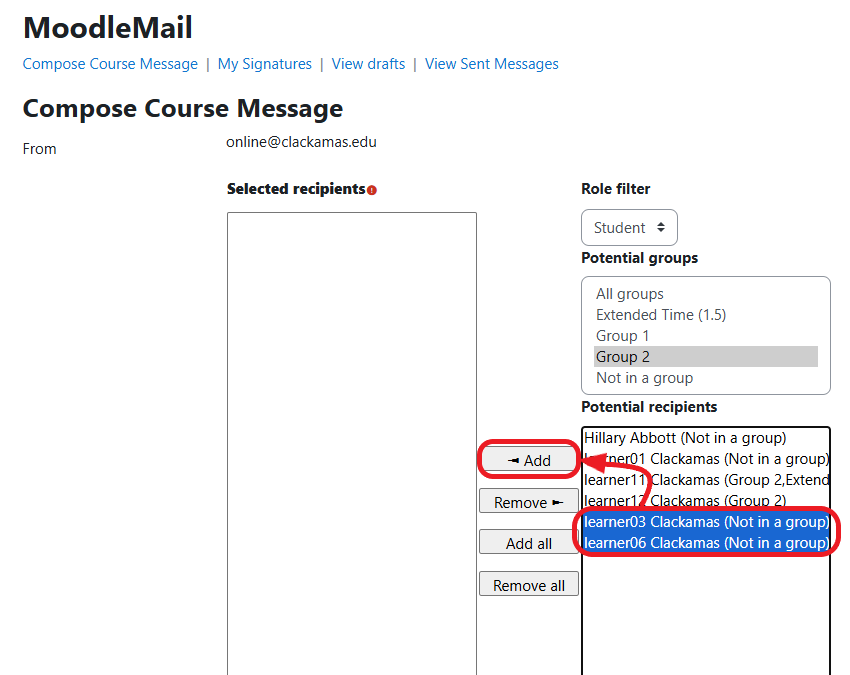
Select the Users you would like to send the message to.

NOTE: You can use Role filter drop-down or the Potential groups area to select specific types of users. You can also hold down the ctrl key while you select or deselect users from the Potential recipients area.

Click on the Add button to move them to the box on the left.

NOTE: If a user has disabled Notification preferences in their Profile within Moodle, they will not appear in the Potential recipients area.

Type in a descriptive Subject. 

NOTE: MoodleMail will automatically Prepend Course Short Name to the front of every subject line so you do not need to remember to type that in here.

Type in the Message using the textbox editor to format.

You can also choose to attach files, use a signature, or elect to receive a copy.

Click the Send email button when you are done.

NOTE: Click the Save draft button if you would like to send the email at a later date.