Gradebook: Drop the Lowest Grade(s)

Home > Gradebook > Gradebook: How Grades are Displayed > Gradebook: Drop the Lowest Grade(s)

This setting is used to ensure that the lowest graded assignments (you choose how many) are NOT used when calculating a category’s total within.

NOTE: It is strongly recommended this not be used on a points gradebook category unless all items are the same value.

Scroll to the top of the main page of your course.

Select the Grades option from the secondary navigation.

Select the Gradebook Setup option from the drop-down menu.

Click the Actions menu (ellipse …) to the right of the Category.

Select the Edit category option from the drop-down menu.

Uncheck the Exclude empty grades checkbox.

NOTE: Failure to uncheck the Exclude empty grades box may result in conflicts where the category totals aren’t calculated at all.

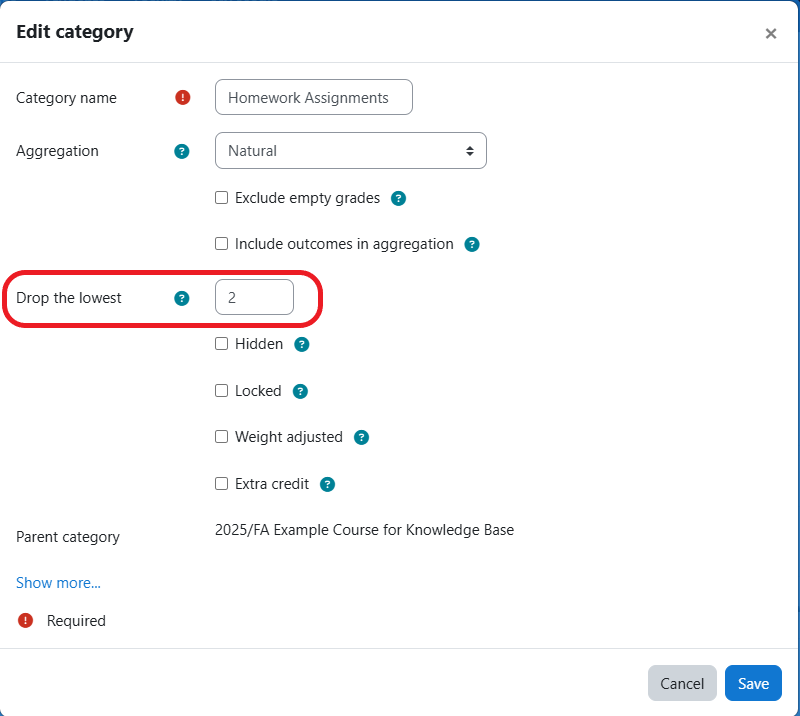
Change the value of Drop the Lowest to the number of assignments you don’t want to include in the category total.

The default is 0 (zero). You might change that value to 2 to drop a student’s lowest two scores in this category.

Click the Save button.