Kaltura Multimedia: Adding Closed-Captions (CC)

Kaltura will automatically machine caption videos in English when recorded by or moved into My Media. However, if the spoken language is French, German, Russian, Spanish, or Vietnamese, you will need to request machine captioning in that specific language.

Machine captioning is fast, simple, and decently accurate (75-85%) but may struggle with acronyms and industry-specific words. However, you can edit the machine captions. If an accommodation from the Disability Resource Center (DRC) requires 100% accuracy, you can request human captioning.

Request machine captioning for a video whose spoken language is French, German, Russian, Spanish, or Vietnamese.

Click the My Media link in the red bar at the top of Moodle.

NOTE: You can also access My Media in MediaSpace at video.clackamas.edu.

Click on the video in need of captions.

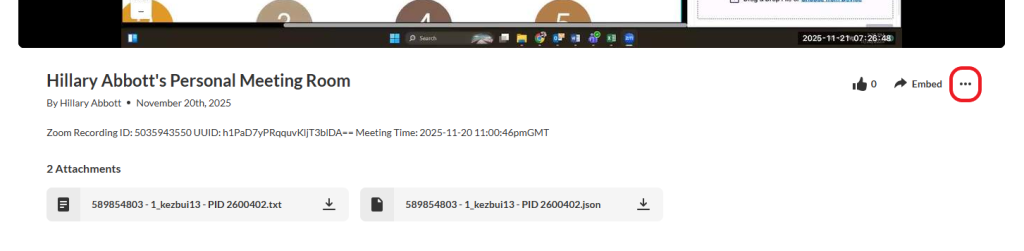
Scroll down to the space directly below the video.

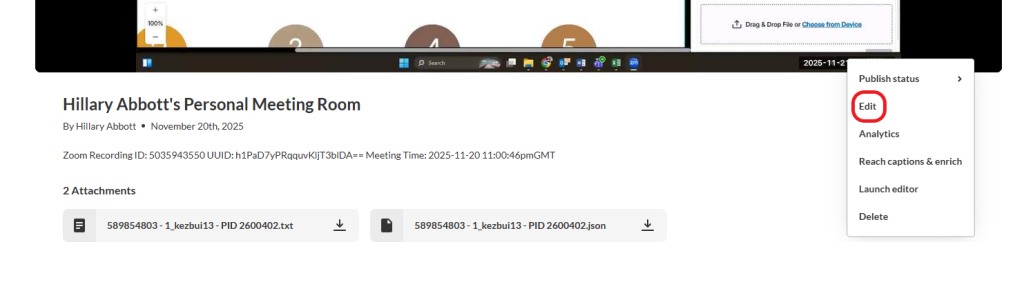
Locate and click the ellipse (…) to open the Actions menu.

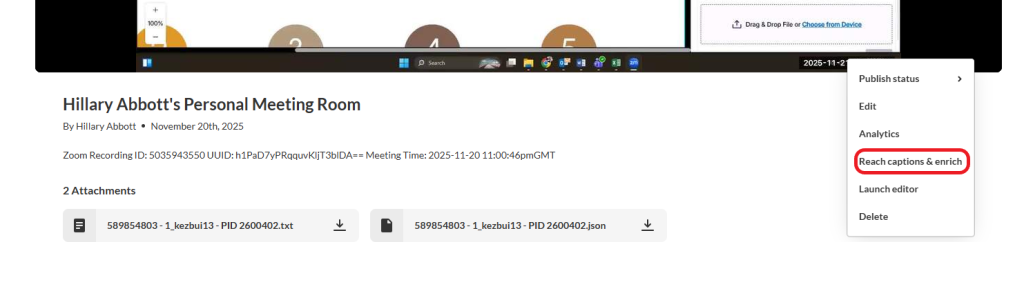
Select the Reach captions and enrich option.

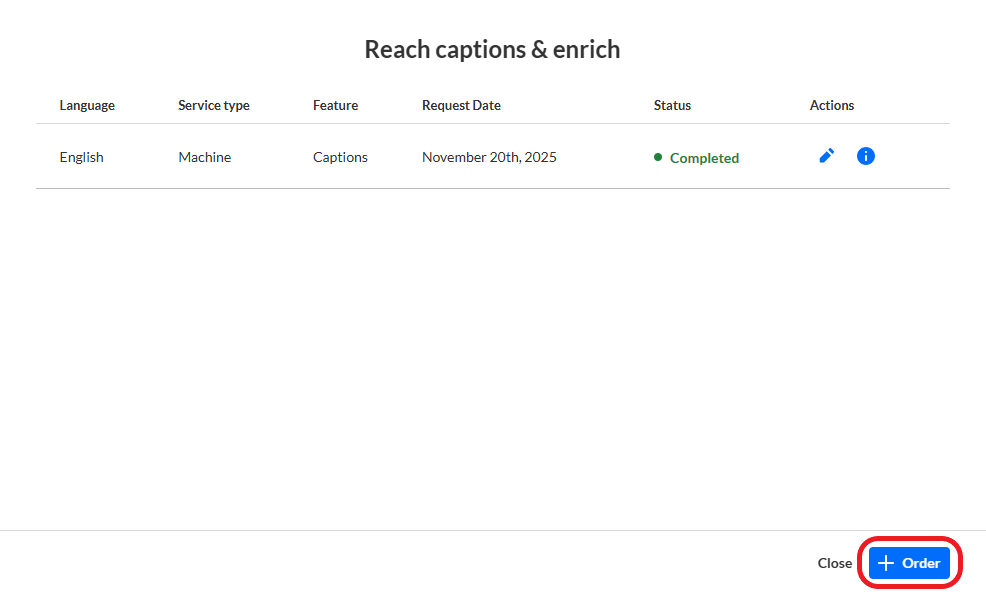
Click the +Order button.

NOTE: If the video was not previously machine captioned you will not need to complete this step.

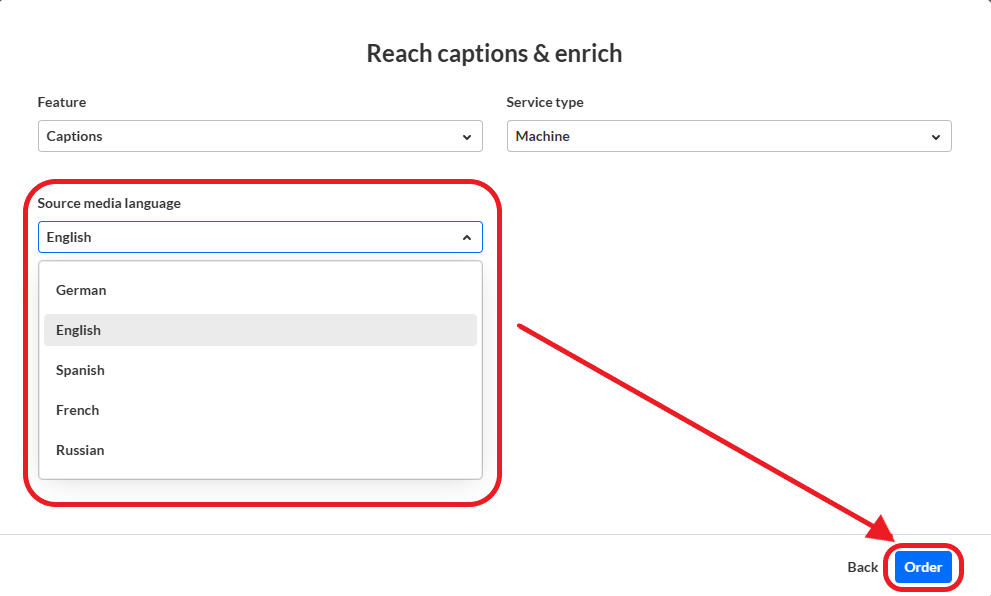
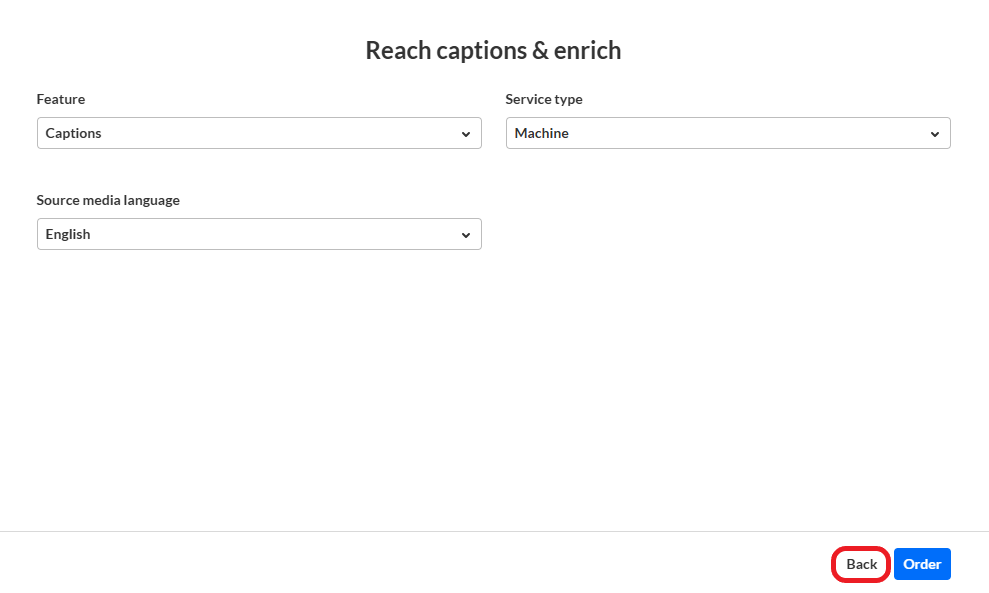
Change the Source media language item to the spoken language in your video.

Click the Order button.

Click the Back button at the bottom.

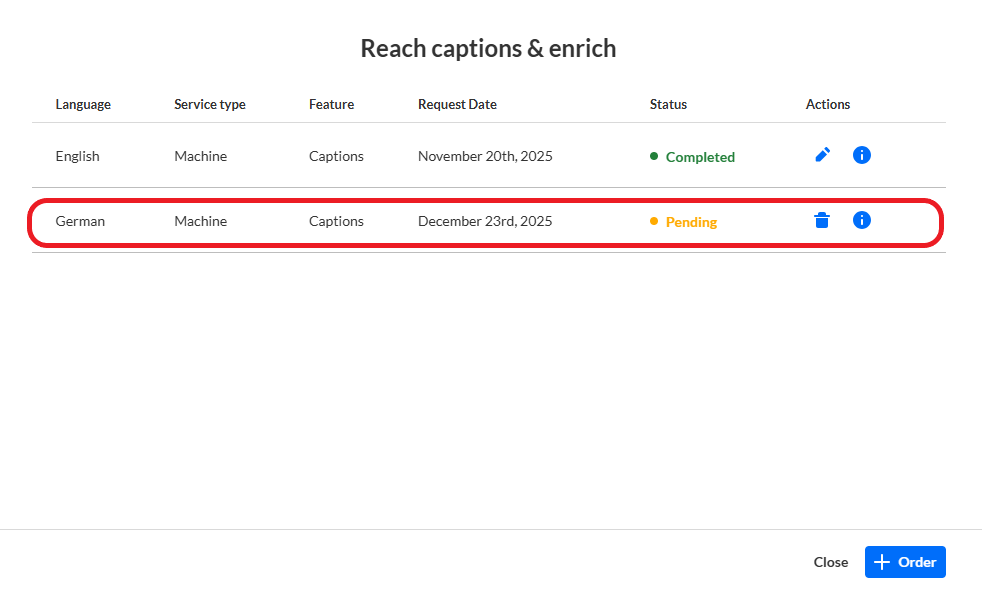
The Reach captions & enrich page will now include a Pending entry under Completed requests.

NOTE: Click the info button to the right of the entry to view additional details about your request, such as an estimate for how long it will take to process your request. Processing time will vary based on the system load and video length.

After your request has been fully processed, use the ellipse (…) to select Edit from the action menu in order to manage or edit the machine captions that you have ordered.

Request Human Captioning

If an accommodation from the Disability Resource Center (DRC) requires 100% accuracy, you can submit a ticket to request human captioning. To process your request, you will need to have your video uploaded to Kaltura and provide us with the Media Entry ID.

NOTE: OLET cannot request human captioning for videos that are not uploaded to Kaltura, such as those on Vimeo.

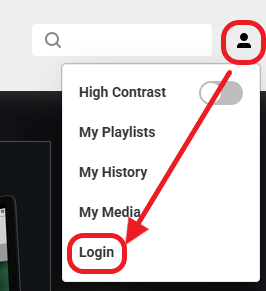
Login to MediaSpace (video.clackamas.edu).

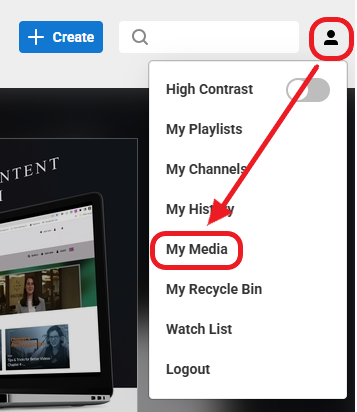
Select My Media option from the user drop-down menu in the upper-right corner.

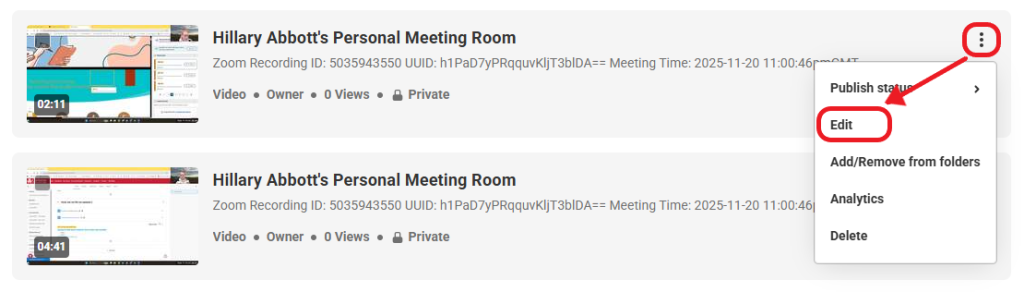
Click the three vertical dots to the right of the video.

Select the Edit option from the drop down menu.

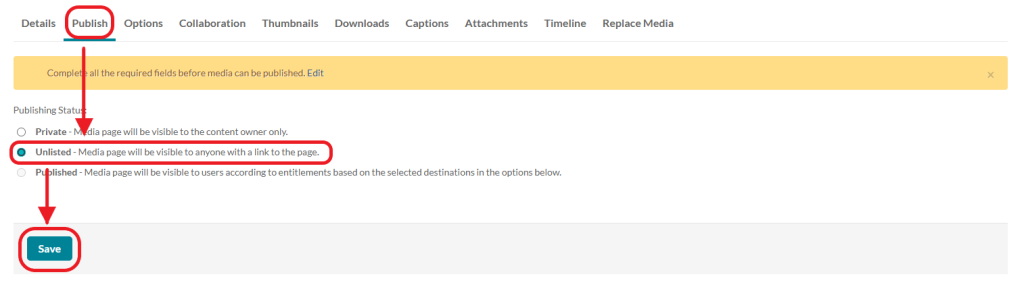
Click the Publish tab.

Change or confirm the Publishing Status is Unlisted

Click the Save button.

Locate the Media Entry ID in the Basic Info for the video.

Copy and submit the Media Entry ID number(s) with your ticket.

NOTE: For videos from YouTube, first verify that the video does not already have professional (human) captioning. Professional captions are signified by the word ‘English’ in the upper left-hand corner of the video when the CC in the video player is toggled on and off; otherwise, the words will read ‘English (auto-generated).’ If professional captions are not offered, you’ll need to upload/add the YouTube Video Page Link to My Media. Then submit both the Media Entry ID and the YouTube link for the video with your ticket.