Quiz: Giving Student Extended Time Limit

A common Disability Services accommodation is for the student to have extended time to complete an exam. If you have time limits set on your quizzes in Moodle you will need to use one of these methods to make sure you are meeting the requirement of the student accommodation letter.

The Unlimited Time user role can be added to specific students in a course to allow them unlimited time to complete a quiz, even though there is a time limit set for everyone else.

From your course page click the Participants option from the secondary navigation.

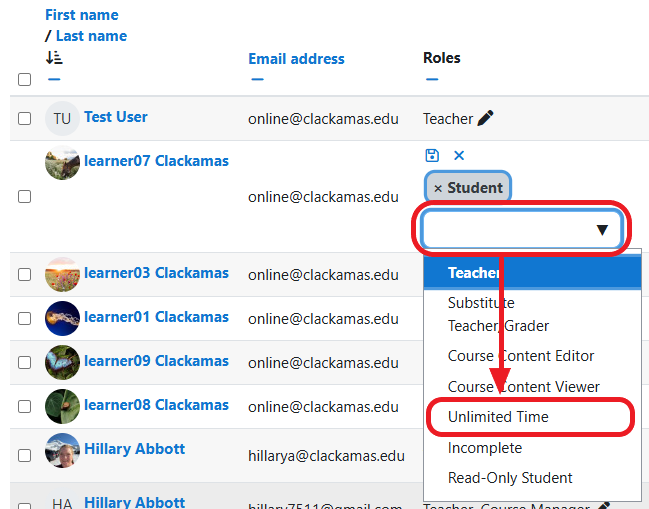
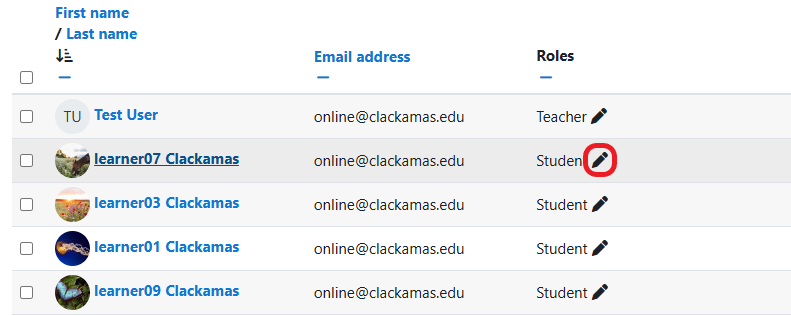
Click the pencil icon in the Roles column to the right of the student you want to give unlimited time to complete tests.

Select Unlimited Time user role from the drop-down.

Click the Disk icon to save the changes.

The student now has two roles within the course: Student and Unlimited Time.

This student will now be given unlimited time to take all quizzes and tests that have time limits.

NOTE: This role does not affect open or close dates for quizzes.

A typical Disability Resource accommodation is extended test time. If you don’t want to give the Unlimited Time role you can add an override to extend the time limit for a specific user to the requested value. These steps will need to be done for every timed quiz within your course.

Enter the Quiz where you want to add the extended time accommodation.

Click More from the secondary navigation, and select the Overrides option.

Click the Add user override button.

From Override user drop-down menu, select the student who needs the accommodation.

NOTE: If you want to set the same override for multiple students, create a group and use the group override option instead.

Set the Time limit to represent the extended time allotted to the student (as outlined in the letter of accommodation).

NOTE: Use this area to change other settings, such as the Close the quiz date and time or the Attempts allowed, if needed.

Click the Save button.

NOTE: If you need to add a different override to this same quiz, you can use the Save and enter another override button.

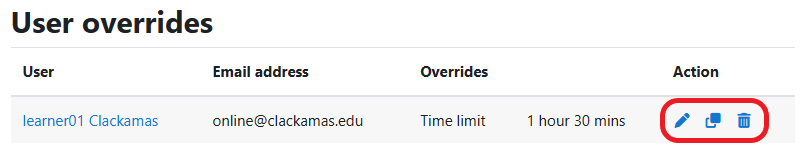
Once you have saved the override, you will see the list of all your User overrides for this particular quiz. You can use this screen to edit the user override (pencil), delete the user override (trash can), or duplicate (two pieces of paper) for you to use the same settings for another user.

Once you receive a letter of accommodation you will need to repeat these steps for every quiz in your course.